

Tutorials
Deploy Your First App from a Docker Image
Deploy a Docker image from Docker Hub or any container registry using QuickStack.
Prerequisites
- QuickStack installed (installation guide)
- A Docker image available in a registry (e.g.
nginx:latest,username/app:tag)
Step 1: Create project and app
- On the dashboard, click Create Project and give it a name.
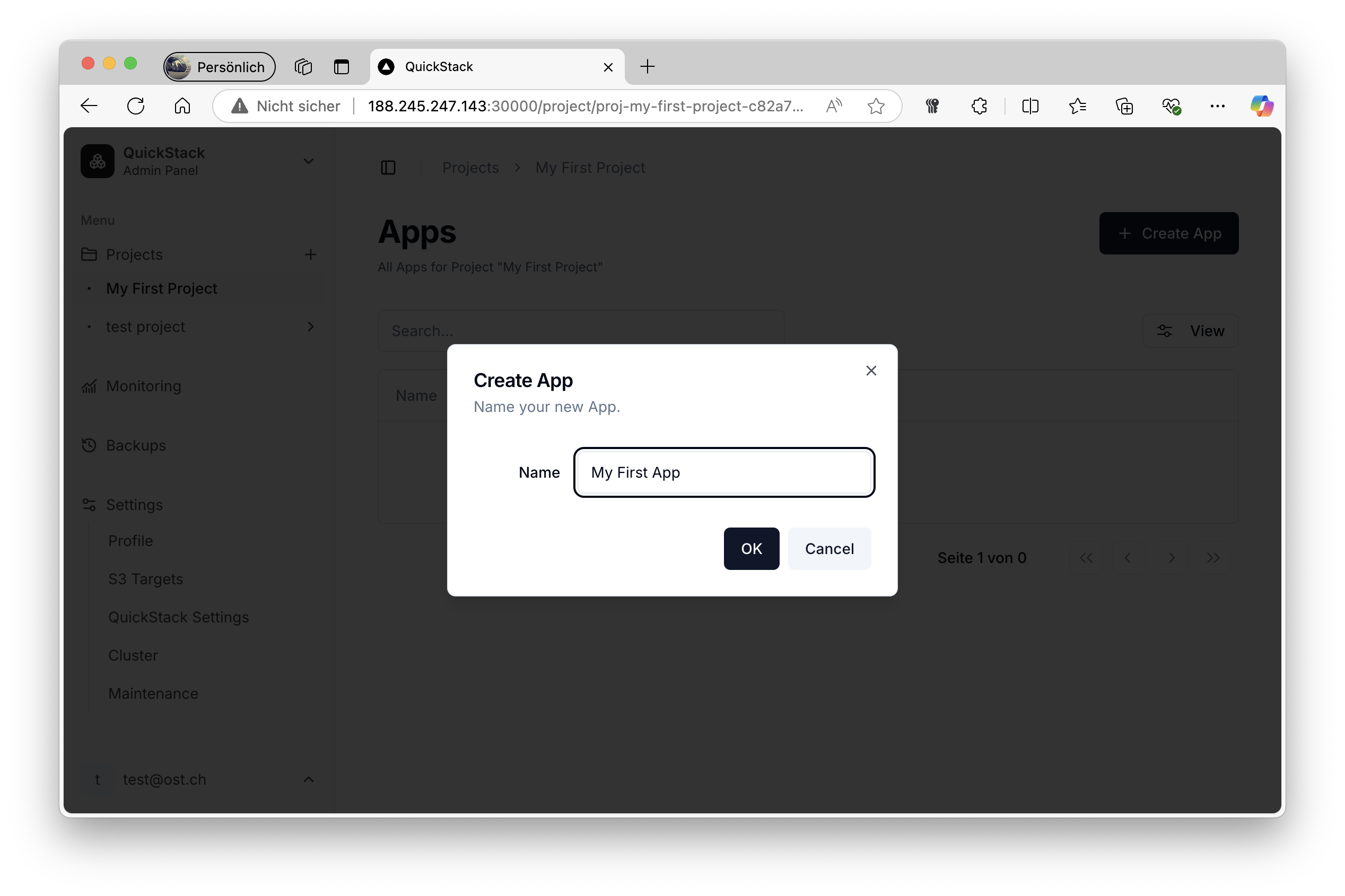
- Open the project, click Create App → Empty App, give your app a name.
- In App Settings → General, set Source type to Docker Image.
- Enter the full image name including tag (e.g.
nginx:latestorusername/app-name:v1.2).
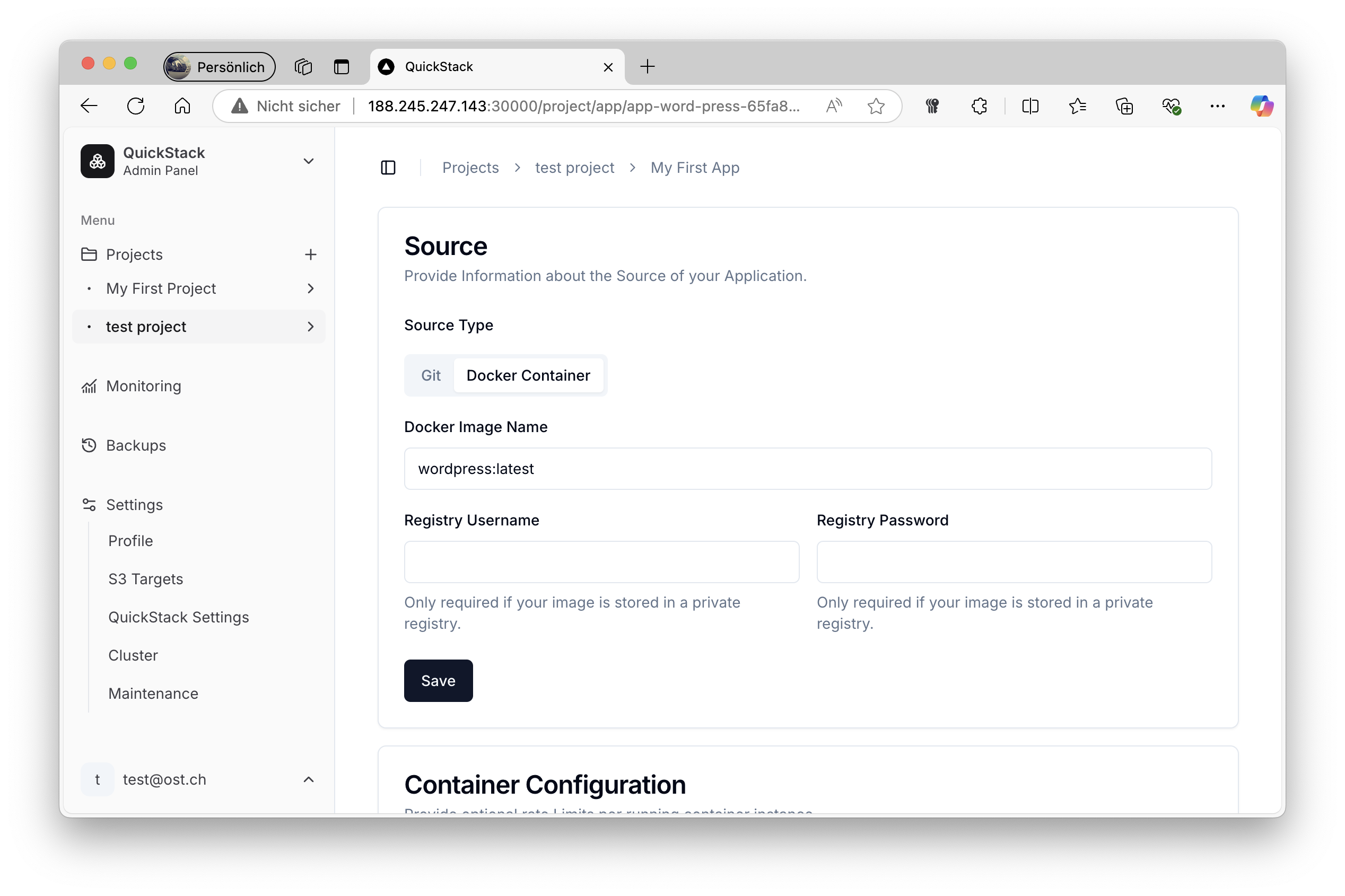
- Click Save.
Step 2: Deploy
Click the Deploy button at the top of the page. QuickStack pulls the specified Docker image and starts the container.
Deploy applies changes Changes to app configuration (image name, env vars, ports, storage) are not applied until you click Deploy.
Step 3: Verify
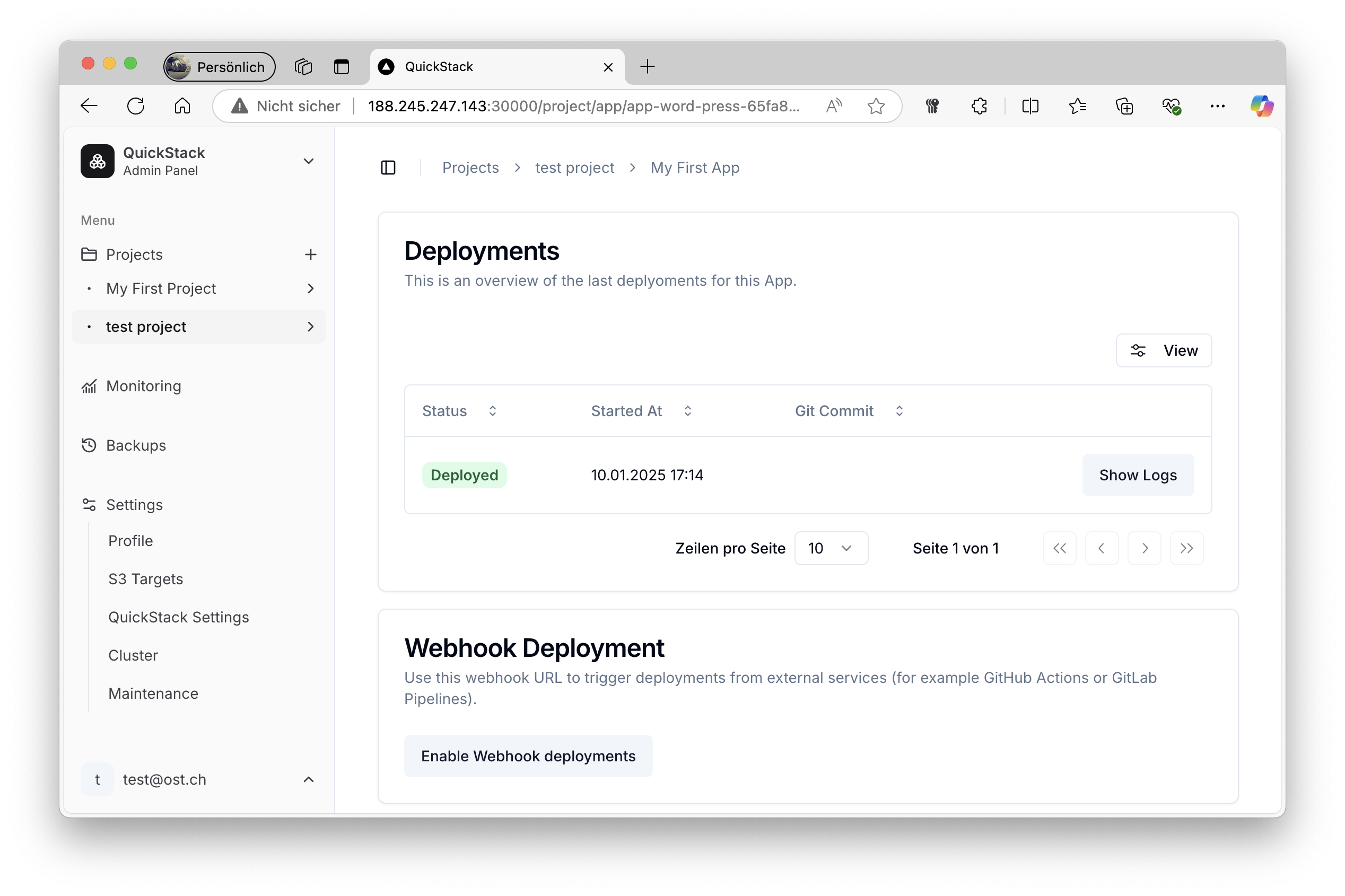
- Open the Overview tab — check that the status indicator is green.
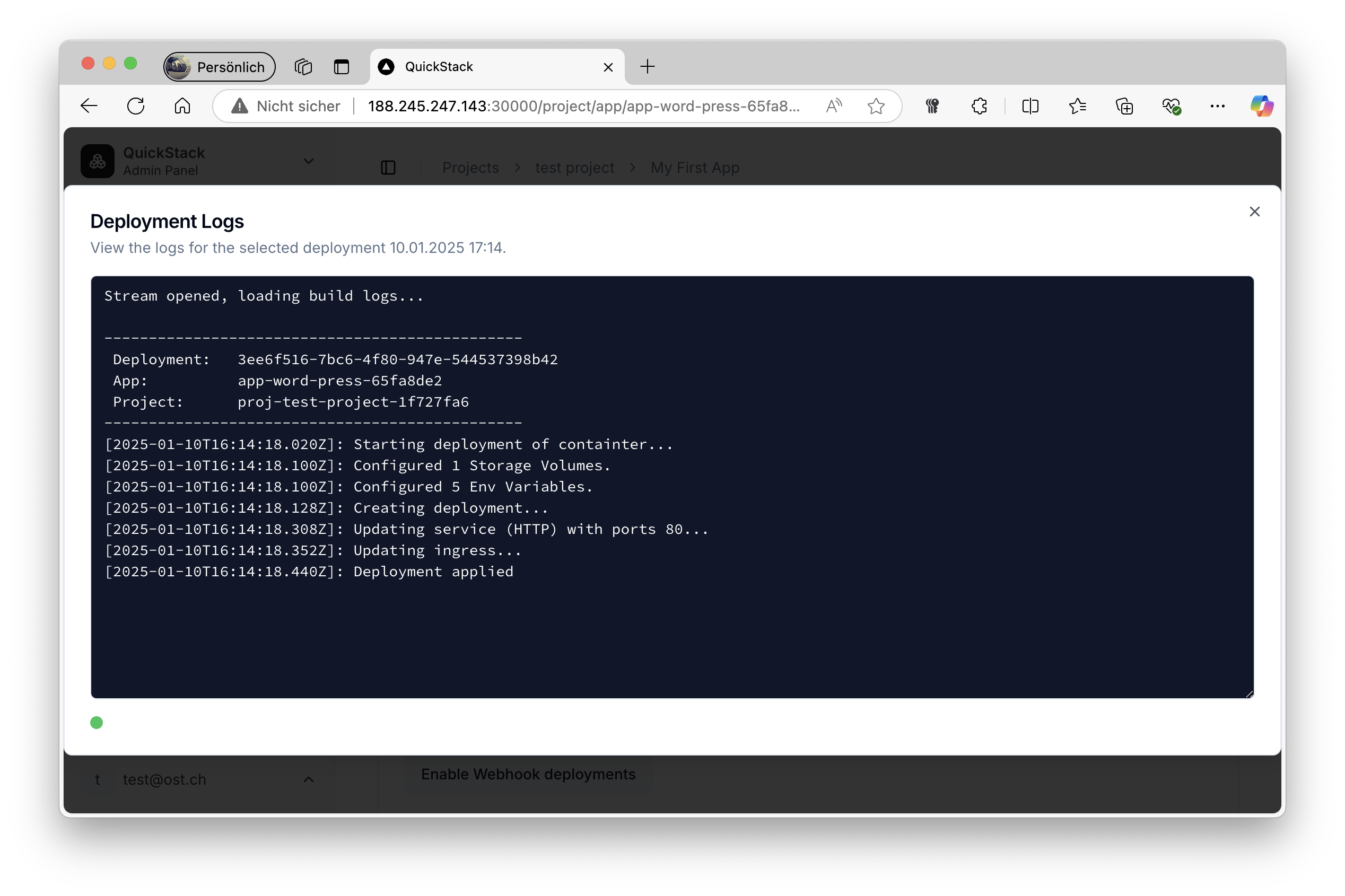
- Click Show Logs to confirm the container started correctly.
Troubleshooting
| Symptom | Fix |
|---|---|
| Deploy fails | Check deployment logs; verify registry is reachable and image name/tag is correct |
| Container not reachable | Ensure App Port in the Domains tab matches the port the container listens on |
| Private registry auth fails | Confirm registry credentials are entered correctly in General settings |