

How ToBackups
Volume Backups
Schedule automated backups for QuickStack application volumes to S3-compatible storage.
Volume backup schedules run periodically and upload a snapshot of your app's persistent volume to an S3-compatible bucket.
Prerequisites
Configure a volume backup schedule
- Open the app and go to the Storage tab.
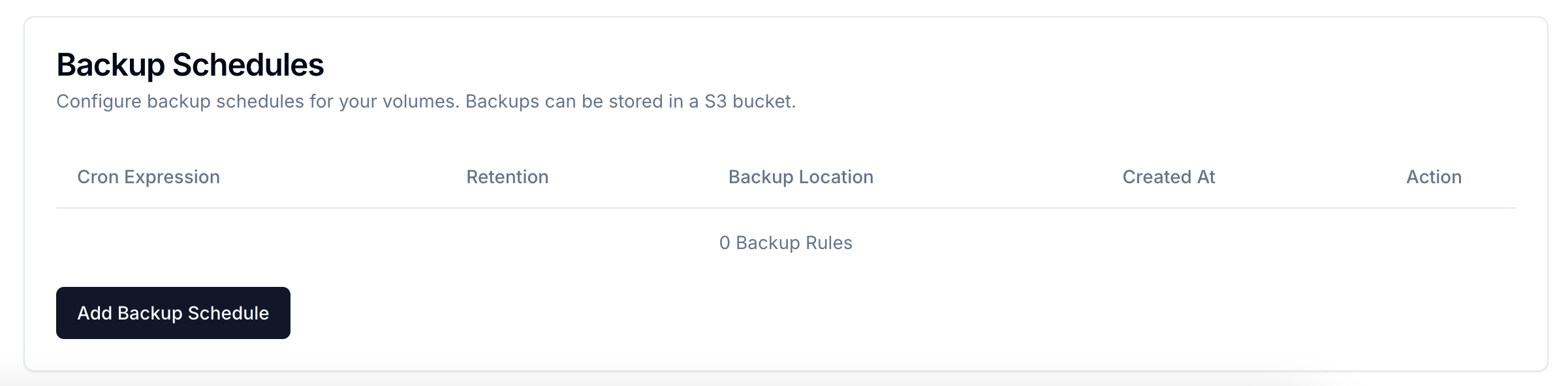
- Scroll to Backup Schedules and click Add Backup Schedule.
- Configure:
| Field | Description | Example |
|---|---|---|
| Cron Expression | When to run | 0 0 * * * (daily midnight) |
| Retention | Number of backups to keep; oldest deleted when exceeded | 7 |
| Volume | Which volume to back up | select from list |
| Backup Location | Which S3 target to use | select from list |
- Click Save.
Cron expressions Use crontab.guru to build and verify cron expressions.
Common patterns:
0 0 * * *— daily at midnight0 2 * * *— daily at 2 AM0 0 * * 0— weekly (Sunday midnight)
Manual trigger To test a schedule immediately, click the play icon next to the schedule in the table.
Monitoring
Navigate to Backups in the main menu to see:
- Last run time and status (success / failure)
- Backup size and storage location
- Manual run button
Troubleshooting
| Problem | Fix |
|---|---|
| Schedule not running | Verify cron expression; check server time is correct |
| Upload fails | Confirm S3 credentials; verify bucket exists with read/write/delete permissions |
| Backup is unexpectedly large | Check for leftover temp files inside the volume path |